TradingView: The Complete Platform Guide
| Signal type | Platform guide |
| Best context | Charting, alerts, screeners, and Pine Script in one workflow |
TradingView is a browser-based charting and social trading platform with over 90 million monthly users, real-time charts across stocks, forex, crypto, futures and indices, a community library of more than 100,000 indicators, and the Pine Script language for building custom tools. Plans run from a free Basic tier to Essential ($14.95/mo), Plus ($29.95/mo) and Premium ($59.95/mo), about 20% off annually.
1. What is TradingView and why do traders use it?
TradingView is the world's most widely used charting and social trading platform, with over 90 million monthly users. It is a browser-based platform that provides real-time and historical charts for stocks, forex, cryptocurrencies, futures, commodities, and indices across hundreds of global exchanges.
Unlike traditional broker platforms locked to a single market, TradingView is exchange-agnostic — you can chart Bitcoin on Bybit, EUR/USD on OANDA, and Apple stock on NASDAQ all from the same interface.
TradingView dominates the retail trading space for three reasons. First, the charting quality is the industry standard — smooth, fast, with thousands of indicators and drawing tools available out of the box. Second, the community library contains over 100,000 public indicators and strategies you can apply to any chart with a single click.
Third, the Pine Script programming language lets anyone build custom indicators, strategies, and automated alerts — a capability no competitor matches at this accessibility level.
For Smart Money Concepts (SMC) and institutional trading specifically, TradingView is the de-facto standard. Order block indicators, Fair Value Gap detectors, liquidity sweep markers, and multi-timeframe market structure analysis tools are all available — including premium Quantum Algo indicators like Zeno. This guide will take you from beginner to professional usage of every feature that matters.
2. Which TradingView plan should you choose?
TradingView operates on a freemium model with four paid tiers. Most beginners can start with the free plan, but several limitations make upgrading worthwhile for serious traders. Here is the honest breakdown of what each plan gives you and which is worth the money.
Basic (Free): A genuinely usable free tier. You get one chart layout, two indicators per chart, and one active alert. The limitation that hurts most beginners is the single active alert — you cannot monitor more than one setup at a time. Ads also appear in the right sidebar. Good for the first weeks of learning, but you will quickly hit ceilings.
Essential ($14.95/month): The entry point for serious learners. Removes ads, lets you stack five indicators per chart, supports two-chart layouts, and unlocks twenty active alerts. This is enough for most swing traders monitoring 10-15 pairs. The biggest practical win: you can run Quantum Algo Zeno alongside Gravity Zone and have three additional confirmation indicators on the same chart.
Plus ($29.95/month): The sweet spot for active traders. Four-chart layouts mean you can monitor multiple timeframes simultaneously (e.g., 4H/1H/15M/5M of the same pair). Ten indicators per chart unlocks deeper confluence stacks. 100 alerts is enough to track every major setup across your watchlist. This is the plan most professional retail traders use.
Premium ($59.95/month): For full-time traders running multi-pair scanning across dozens of setups. Eight-chart layouts, 25 indicators per chart, and 400 alerts. The most valuable Premium-exclusive feature is second-based intervals (1-second, 5-second, 30-second charts) used by scalpers and quantitative traders. Unless you scalp intraday futures, Plus is enough.
Annual discount: All paid tiers receive ~20% off when billed annually. Two free months effectively. If you plan to trade for at least a year, annual billing is the obvious choice.
3. What does each panel of the TradingView interface do?
The TradingView interface looks intimidating at first, but every element follows a logical pattern. Master the layout and you will navigate the platform at the speed of thought. Here is what each panel does and how to use it efficiently.
Top bar: Contains the symbol search (CTRL+K or CMD+K is the fastest way to switch symbols), timeframe selector, indicators button, alerts button, and chart layout management. Memorize CTRL+K for instant symbol switching — it is the single most-used shortcut on the platform.
Left toolbar: All drawing tools — trend lines, Fibonacci tools, horizontal levels, channels, shapes, prediction tools, measurement tools, brushes, text, and patterns. Right-click any tool to access advanced options. The first tool icon (trend line) is by far the most common — set it as your default by pinning it.
Main chart area: Your candlesticks and indicators render here. Click and drag to pan. Mouse wheel to zoom. Press SHIFT and drag to zoom in on a specific time range. Press ALT and click to add quick price labels. The crosshair shows OHLC data for any candle you hover over in the top-left status bar.
Right sidebar: Watchlist (your tracked symbols), screener (find symbols meeting criteria), alerts panel, news feed, hotlists (top movers), calendar (economic events), and Ideas stream (community trade ideas). Pin the watchlist always — it is the second most-used panel after the chart itself.
Bottom panel: Strategy Tester (for backtesting Pine strategies), Pine Editor (for writing custom code), data window (live OHLCV values), trading panel (broker integration), and notes. Press CTRL+SHIFT+H to hide/show the bottom panel quickly.
Layout management: The "Select Layout" button (top right of chart toolbar) lets you switch between 1-chart, 2-chart, 3-chart, 4-chart, 6-chart, and 8-chart grids depending on your plan. Multi-chart layouts are essential for multi-timeframe analysis — see Section 8.
4. Which drawing tools should every trader master?
TradingView offers 90+ drawing tools, but professional traders use fewer than 10 in daily practice. Master these and you have everything needed to analyze any market across any timeframe.
Horizontal Line (ALT+H): The most-used tool. Marks support and resistance levels, order block zones, fair value gap boundaries, and key psychological prices. Right-click the level to set alerts directly on the line — TradingView triggers an alert when price crosses, touches, or moves outside your defined range.
Trend Line (ALT+T): Connects two or more points to identify trends, channels, and slopes. Used for trend line breaks (BOS confirmations), wedge patterns, and channel trading. Extend the line to the right by clicking and holding the endpoint, then dragging it forward.
Rectangle Tool: Critical for SMC traders. Used to mark order block zones, fair value gaps, supply and demand zones, and consolidation ranges. The rectangle's top and bottom edges become your S/R levels — set alerts on either edge to be notified of zone tests.
Fibonacci Retracement (ALT+F): Drag from swing low to swing high (uptrend) or swing high to swing low (downtrend) to draw retracement levels. The 50%, 61.8%, 70.5%, and 79% levels are the most important for SMC entries. Customize the levels shown by right-clicking the tool.
Fibonacci Extension: Three-point tool that projects targets beyond the current price. Use for setting take-profit levels. Standard targets: 100%, 161.8%, 261.8%. Combine with FVGs and order blocks for confluence-based exits.
Long Position / Short Position Tool: The risk-reward visualizer. Click your entry, then drag to set your stop-loss and take-profit. TradingView displays the R:R ratio, dollar risk, and dollar reward automatically. Essential for visual risk management before every trade.
Pitchfork: Advanced tool for identifying parallel channel zones based on three pivot points. Less commonly used but powerful for identifying mean-reversion levels in trending markets.
Vertical Line + Date Range: Mark significant time-based events (news releases, market opens, session boundaries). Pair with kill-zone analysis — vertical lines at London open, NY AM, and NY PM clearly delineate institutional trading windows. See our ICT Trading Strategy Guide for session-based analysis.
5. Should you use built-in indicators or community scripts?
TradingView includes hundreds of built-in indicators (RSI, MACD, Bollinger Bands, Moving Averages, Ichimoku, etc.) plus access to over 100,000 community-published scripts. Knowing the difference between these categories — and which to actually use — matters more than most traders realize.
Built-in indicators: Open the indicators panel (`/` shortcut) and the "Technicals" tab shows TradingView's built-in suite. These are the classic indicators every trader knows: RSI, MACD, Stochastic, ATR, ADX, OBV, VWAP, the full moving average family, Volume Profile, and Auto Fib Retracement. They are well-tested, accurate, and free with every plan.
Community scripts: The "Community" tab shows public scripts published by other traders. There are three tiers visible here: Public (open source, free), Protected (closed source but free), and Invite-Only (paid access required from the publisher).
The community quality problem: Most community scripts are garbage. A search for "buy sell signals" returns thousands of repainting indicators that look amazing in screenshots but fail in live markets. The "Editors' Picks" curated list and the "Top" sorting filter help you find legitimate scripts, but always test community scripts on bar-replay before using them with real money.
How to identify quality scripts: Look for these signals when evaluating any community indicator: (1) author has 1,000+ likes across their library, (2) the indicator has 5,000+ uses, (3) recent updates within the last 6 months, (4) clear documentation in the description, (5) honest discussion of limitations in the comments. Avoid scripts with vague descriptions, suspicious 95%+ "win rates," or comment sections full of complaints.
Invite-only indicators: Premium paid indicators like Zeno are distributed via the invite-only system. The publisher grants you access to a closed-source script that loads on your charts with full functionality but cannot be reverse-engineered. This protects the publisher's IP while letting you use the indicator across all your charts.
Indicator stacking limits: Remember your plan's per-chart limit — 2 (Basic), 5 (Essential), 10 (Plus), 25 (Premium). Each instance of an indicator counts as one slot. A multi-timeframe MACD that loads 4 separate copies uses 4 slots. Plan your stack carefully.
6. How do you set up TradingView alerts and webhooks?
TradingView's alert system is more powerful than most traders realize. Beyond simple price-cross notifications, alerts can trigger on indicator conditions, drawing tool boundaries, webhook URLs (for automated trading), and complex Pine Script logic. Mastering alerts means never missing a setup again.
Basic alert types:
Crossing: Triggers when price crosses a level. The most common alert.
Crossing up/down: Directional version — only fires when price crosses from below to above (or vice versa).
Greater than/Less than: Triggers when price exceeds or falls below a value.
Entering/Exiting Channel: Fires when price enters or exits a defined zone.
Moving Up/Down %: Fires on a percentage move from current price.
Indicator-based alerts: Right-click any indicator and select "Add Alert" — TradingView shows alert conditions specific to that indicator. RSI overbought/oversold, MACD crossovers, Bollinger Band touches, and dozens of others are available out of the box. Custom Pine Script indicators can define their own alert conditions for any logic the developer programs.
Alert delivery methods: TradingView delivers alerts via in-app notifications, email, SMS (paid tiers only), mobile push notifications, audio sounds, and webhooks — the gateway to automated trading.
Webhook automation: When TradingView fires an alert with a webhook URL configured, it POSTs the alert message to that URL as JSON. Your webhook receiver (a server, cloud function, or local app) parses the JSON and executes whatever action you have programmed — placing a trade on Bybit, sending a Telegram message, logging to a Google Sheet, anything.
This is exactly how QuantumBot works: Pine Script signals from Quantum Algo indicators fire alerts with structured JSON payloads. The webhook server validates the signal, applies risk management (position size, leverage, max heat), and submits the trade to Bybit. The full pipeline from Pine signal to live order takes under 2 seconds.
Alert message formatting: TradingView supports placeholder syntax inside alert messages: {{ticker}}, {{close}}, {{strategy.order.action}}, {{plot("plotname")}}, and many more. Build structured JSON in your alert message body and your webhook receiver can extract everything needed for execution.
Alert limitations to know: Free plan = 1 active alert. Essential = 20. Plus = 100. Premium = 400. Alerts expire after a set period (default: 2 months) unless you mark them as "Open-ended." Always check your alert count regularly — adding new alerts when you are at the limit silently fails.
7. How do you build your own indicator with Pine Script?
Pine Script is TradingView's proprietary programming language for building custom indicators and strategies. It is intentionally simplified — designed for traders, not software engineers. If you can write a basic Excel formula, you can write Pine Script. The current version (Pine v6) is the most powerful release yet.
What Pine Script can do: Build any custom indicator, calculate any mathematical formula, plot lines/shapes/labels/tables on the chart, run backtested strategies with the Strategy Tester, define alert conditions, send webhooks, and create complex multi-timeframe analysis tools. The only thing Pine Script cannot do is execute trades directly — that requires the webhook integration covered in Section 6.
The Pine Editor: Located in the bottom panel (CTRL+SHIFT+P to open). The left side shows your code, the right side shows live errors and the chart preview. The "Add to Chart" button compiles your script and applies it to the current chart. Free-tier users can have unlimited Pine scripts saved locally; published scripts have plan-based limits.
A minimal Pine Script:
//@version=6
indicator("My EMA", overlay=true)
len = input.int(20, "EMA Length")
ema_value = ta.ema(close, len)
plot(ema_value, color=color.aqua)
This 5-line script plots a 20-period EMA. Pine's syntax is closer to Python than C — no semicolons, no curly braces, indentation matters. Variables are inferred from their assignment.
Key Pine Script concepts:
Series vs simple: Pine values are either time-series (changing each bar — like price) or simple (constant — like an input). Mixing them incorrectly causes the most common Pine errors.
Bar-by-bar execution: Pine runs the entire script for every bar on the chart.
Inside your script, references to close mean "the close of the current bar being calculated."
Historical access: Use close[1] to access the previous bar's close, close[5] for 5 bars ago, etc.
request.security(): Pulls data from another symbol or timeframe — the foundation of multi-timeframe analysis.
alertcondition(): Defines an alert condition the user can attach when adding the indicator.
Learning Pine Script: The official documentation at TradingView is excellent and free. The Pine Script Wizards group on TradingView's chat has thousands of active developers helping each other. For SMC-specific Pine logic, study published open-source order block, FVG, and liquidity sweep indicators to learn the patterns. Within 40-60 hours of practice, you can build any indicator you can describe in plain English.
8. What does a professional TradingView workflow look like?
The difference between a beginner and a professional TradingView user is not the indicators they use — it is the workflow. Here is the exact setup professional traders run:
Step 1 — Save multiple chart layouts. Create separate layouts for different analysis modes: "Swing Trading" (Daily + 4H + 1H), "Day Trading" (1H + 15M + 5M), "News Trading" (5M with economic calendar). Each layout has its own indicators, drawings, and watchlists. Switch between them with one click depending on your trading mode.
Step 2 — Build a structured watchlist. Organize your tracked symbols by category (Forex Majors, Crypto Top 10, Gold/Silver, Indices). Use the description field to mark current bias (e.g., "EURUSD - Long bias above 1.0850"). Update notes after each session. The watchlist becomes a living document of your analysis.
Step 3 — Set persistent alerts at structural levels. Rather than chasing price, mark every significant support/resistance level with alerts. When price approaches, you get notified — eliminating screen-staring. Set alerts at: HTF order blocks, fresh FVGs, liquidity pools, key psychological prices, and previous swing highs/lows.
Step 4 — Use multi-chart layouts for confluence. A 4-chart layout showing the same pair on Weekly/Daily/4H/1H lets you confirm trades across timeframes without switching views. Higher-timeframe alignment is the foundation of high-probability setups.
Step 5 — Save and share trade ideas. Every significant setup, publish as a TradingView Idea with your entry, stop, and target. The timestamp and chart snapshot become permanent records of your analysis. This single habit transforms your trading: you cannot lie to yourself about predictions when every call is timestamped publicly. See our public TradingView Ideas for examples of this discipline in practice.
Step 6 — Backtest in Replay mode. Bar Replay (the rewind button in the top toolbar) lets you scroll back to any historical date and play forward bar by bar. Use it to test your strategy against historical conditions, train your pattern recognition, and validate new ideas before risking capital.
Step 7 — Connect to your broker (optional). TradingView integrates directly with several brokers (OANDA, FXCM, TradeStation, others). Trading panel at the bottom shows positions, orders, and lets you execute trades from the chart. For brokers without direct integration (like Bybit for crypto), use the webhook automation flow.
9. What mistakes do TradingView beginners make?
Mistake 1: Indicator overload. New users discover the community library and load 10-15 indicators on a single chart. The result is visual chaos with conflicting signals on every candle. Limit yourself to 3-5 indicators maximum, each with a specific role.
Mistake 2: Using free public scripts without testing. The 95%+ "win rate" indicators flooding the community library almost universally repaint, lag dramatically, or only worked on the specific symbol/period they were optimized for. Always test community scripts on Bar Replay across multiple symbols and time periods before relying on them.
Mistake 3: Not saving layouts. Building the perfect chart setup, then losing it when you switch symbols or accidentally clear drawings. Always click "Save" (CTRL+S) and name your layouts. Use the "Default chart settings" option in templates to apply the same setup to every new chart automatically.
Mistake 4: Ignoring keyboard shortcuts. The traders who navigate the platform 3x faster than everyone else have memorized 10-15 keyboard shortcuts. Print the shortcut cheat sheet, tape it next to your monitor, and force yourself to use shortcuts even when slower at first.
Mistake 5: Trading on the basic plan past month 1. The single-alert limitation forces you to constantly remove and re-add alerts as setups complete. This friction means you miss setups while reconfiguring. The $14.95/month Essential plan eliminates this overhead — well worth the cost.
Mistake 6: Not using Bar Replay. The Replay feature is hidden in the toolbar (rewind icon). Most users never discover it. Bar Replay is the single best learning tool in trading — practice your strategy on historical data without spending real capital. Run 100 replay sessions and your pattern recognition improves dramatically.
10. Test Your Knowledge
Seven questions on TradingView platform mastery.
11. Premium Indicators for TradingView
TradingView is the canvas. The indicators you load on it determine what you actually see and trade. Built-in indicators get you started; premium tools transform what is possible.
How do you judge an indicator before you trust it?
TradingView's public library contains tens of thousands of scripts, and the ones with the most spectacular backtests are frequently the least trustworthy. Before an indicator earns a place on your chart, it has to survive one test: do its historical signals still sit where they were printed?
Bar replay test
Step forward candle by candle with TradingView's replay tool. Note where signals appear in real time, then compare to the finished chart. Any difference means the backtest is fiction.
Screenshot test
Capture today's last twenty signals and re-check in a week. On an honest indicator they are pixel-identical.
Source test
Open-source scripts can be read and verified. A closed script with a 95% claim and no public record deserves the most scepticism.
Perfection test
Signals landing at exact tops and bottoms with almost no losers are a warning, not a feature. Real edges are messy.
What chart setup works best on TradingView?
Most struggling traders have too much on screen. The goal is a layout where the decision is obvious in a few seconds — which means removing everything that does not change what you do.
| Layer | What belongs there | Why |
|---|---|---|
| Higher-timeframe chart | Structure, major zones, range position | Sets direction — the decision that comes first |
| Entry-timeframe chart | Refined zones, entry trigger, stop and targets | Times the trade inside the higher-timeframe bias |
| One volume or flow pane | Volume, CVD, or delta — pick one | Confirms whether the move has real participation |
| Nothing else | — | Every extra oscillator adds a way to talk yourself into a trade |
The two-chart workflow
Bias flows downward from the higher timeframe. Entries never flow upward.
Why are alerts the discipline tool most traders ignore?
The most valuable TradingView feature for consistency is not an indicator — it is server-side alerts. Setting an alert at your zone and walking away removes the two biggest sources of bad entries: staring at price until you talk yourself in, and missing the setup because you looked away. Set the alert when you mark the zone, not when price approaches it.
A chart that already answers the questions
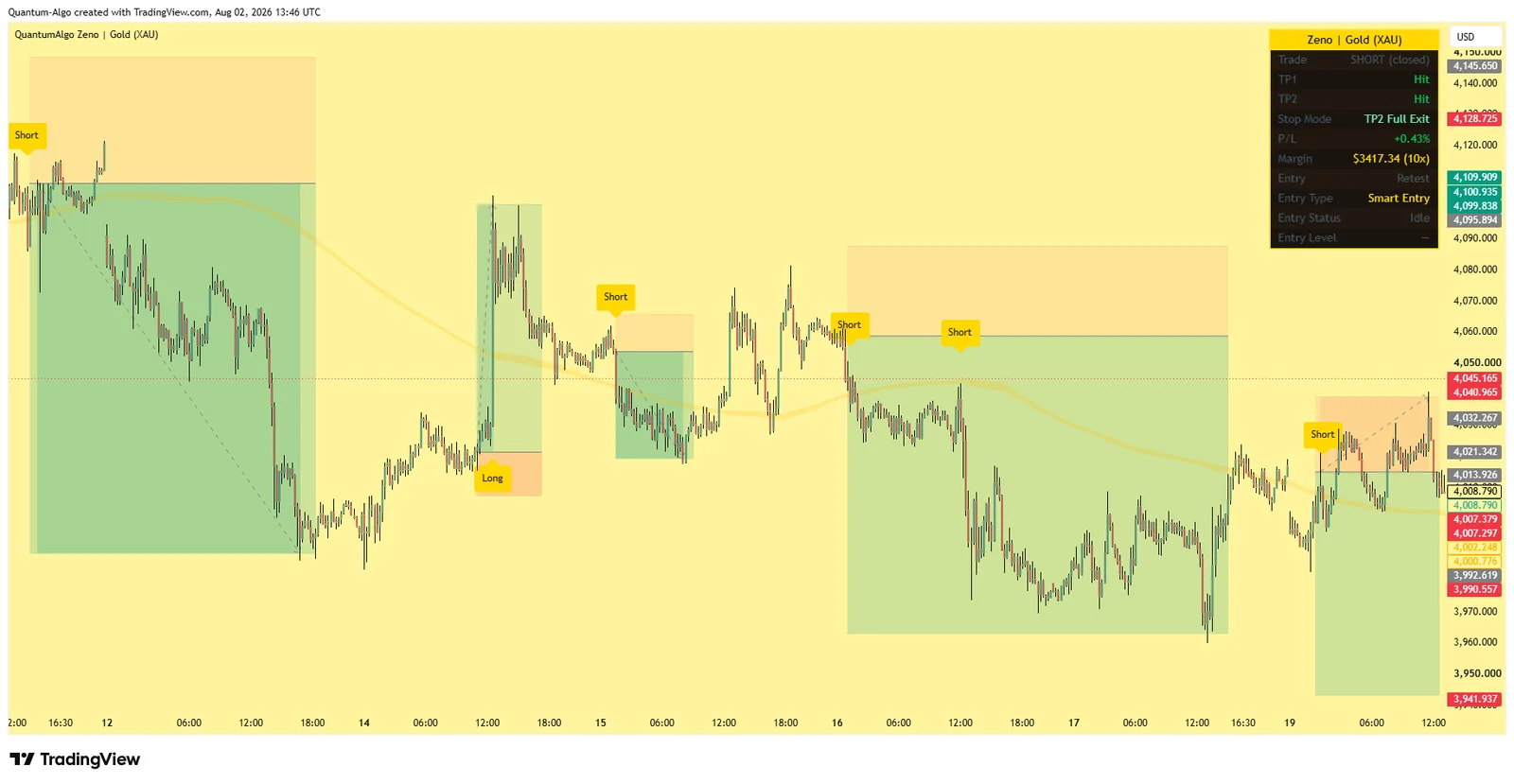
Quantum Algo marks structure, zones and liquidity on one clean layout, with entry, stop loss and two targets drawn on every signal — and a public ledger so you can verify before you trust.
See the indicator → Verify the track recordFrequently Asked Questions
Yes. The free tier gives you charts, most drawing tools, thousands of community indicators and basic alerts, which is enough for a complete workflow. Paid tiers add more indicators per chart, more alerts, multiple charts in one layout, second-based intervals and no ads. Most traders can run a disciplined two-chart setup on the free plan and upgrade only when a specific limit becomes a genuine obstacle.
As few as change your decisions - typically structure and zones on price, plus one volume or order-flow pane. Extra oscillators mostly create additional ways to justify a trade you already wanted to take. If an indicator has never caused you to skip a setup or size differently, it is decoration rather than analysis.
Repainting is when a script changes its historical signals after the fact, so the chart shows a sequence of trades that was never available in real time. Arrows can appear on the live bar and vanish, or be added only once the outcome is known. Any backtest built on repainted history is fiction, which is why testing for it is the first thing to do with a new indicator.
Use bar replay and step forward candle by candle, noting where signals appear in real time, then compare with the finished chart - any difference is repainting. Screenshot the last twenty signals and re-check a week later; they should be pixel-identical. Refreshing the chart mid-session is a third quick test, since signals should not rearrange after a reload.
Treat every point above roughly 70 percent as a reason for more scepticism, not less. Extremely high win rates usually indicate repainting, curve fitting, or a cherry-picked period, and often come with tiny targets and enormous stops that make the percentage meaningless. A published record that includes losing trades is far stronger evidence than any backtest screenshot.
Two is usually enough: a higher timeframe such as 4-hour or daily for bias and major zones, and an entry timeframe such as 15-minute to time the trade inside that bias. Bias flows downward from the higher timeframe and entries never flow upward. Adding more charts tends to produce contradictory readings rather than better decisions.
Alerts run on TradingView's servers, so they fire whether or not your browser is open, and can notify you by app, email or webhook. They can be attached to a price level, a drawing, or an indicator condition. Setting an alert at your zone when you mark it - rather than watching price approach - removes both premature entries and missed setups.
Yes. A free TradingView account is enough to add the indicator to a chart and receive its signals, zones and levels. The free plan's limit on indicators per chart is the main constraint, which is another reason to keep your layout minimal: with structure, zones and one flow pane you are comfortably inside the free allowance.
An indicator plots information on the chart, while a strategy also simulates entries and exits and produces a backtest report. Strategy reports look authoritative but are easy to distort through repainting, unrealistic fills, or ignoring fees and slippage. Treat a strategy tester result as a starting hypothesis, not proof, and verify with bar replay and forward testing.
Be careful. Adjusting settings until historical performance looks excellent is curve fitting, and the result usually collapses on new data. Prefer settings that are robust across a range of values and instruments over the single combination that produced the best backtest. If a small parameter change destroys performance, the edge was in the fitting rather than the market.
Yes, all of them, and the same analytical workflow applies across markets. The practical differences are session structure - crypto trades 24/7 while forex and equities have defined sessions - and volatility, which affects stop placement and position sizing far more than it affects which zones matter. Data availability varies by broker and exchange connection.
Run the repaint tests, check whether the logic is public, and ask what decision the tool will change. If it does not alter your bias, your entry, your stop or your size, it does not belong on the chart. A layout of three tools you fully understand beats twelve you half-trust, because hesitation at the moment of entry costs more than any missing signal.
References & Related Guides
More in this topic
- Koyfin Review: A Bloomberg-Lite for Fundamentals — and Where Traders Should Still Use TradingView
- Best CFD Trading Platforms With Charting: Ranked for Chart-Driven Traders
- Cumulative Volume Delta (CVD): Complete Guide
- Smart Money Concepts (SMC): Ultimate Trading Guide
- Premium and Discount Zones: Complete Guide
- Best TradingView Indicators — Complete Guide
- Divergence Trading: Complete Guide
- Elliott Wave Theory — Complete Trading Guide
- Fisher Transform Indicator: Complete Guide
- Harmonic Patterns: Complete Trading Guide
- Heikin Ashi — Complete Smoothed Candlestick Guide
- Inside Bar Trading: Complete Guide
- Leverage Trading: The Complete Guide
- Machine Learning Trading Indicators (Lorentzian): Complete Guide
- Pin Bar Trading: Complete Guide
- Pivot Points — Complete Intraday Support & Resistance Guide
- Position Trading: Complete Guide
- How to Use TradingView — Beginner's Guide
- Best TradingView Alternatives
Core reading
- BOS & CHoCH: Complete Market Structure Guide
- Order Blocks Trading: Complete Guide
- Risk Management in Trading — Complete Guide
- Candlestick Patterns Guide — Engulfing, Pinbar & More
- All Premium Guides
- Quantum Algo on TradingView
- Public Track Record